
const liveboardEmbed = new LiveboardEmbed('#embed-container', {
    frameParams: {
        width: '100%',
        height: '100%',
    },
    liveboardId: '<Your-Liveboard-ID>', //
    enableLiveboardDataCache: true, //
});Customize data refresh and download options
Table of Contents
The Visual Embed SDK provides properties, action IDs, and events to control how users refresh Liveboard data and download or export Liveboards from the embedded view.
Before you begin, make sure you have embedded a Liveboard using the LiveboardEmbed component.
Liveboard browser cache and refresh🔗
ThoughtSpot supports browser-side data caching for Liveboards to improve load performance for users who revisit the same Liveboard within a session. Users can clear cache by clicking the refresh icon in the Liveboard header.
To enable Liveboard data caching, set enableLiveboardDataCache to true.
When data caching is enabled, the refresh icon appears in the Liveboard header. Users can click this button to clear the browser cache and fetch fresh data.
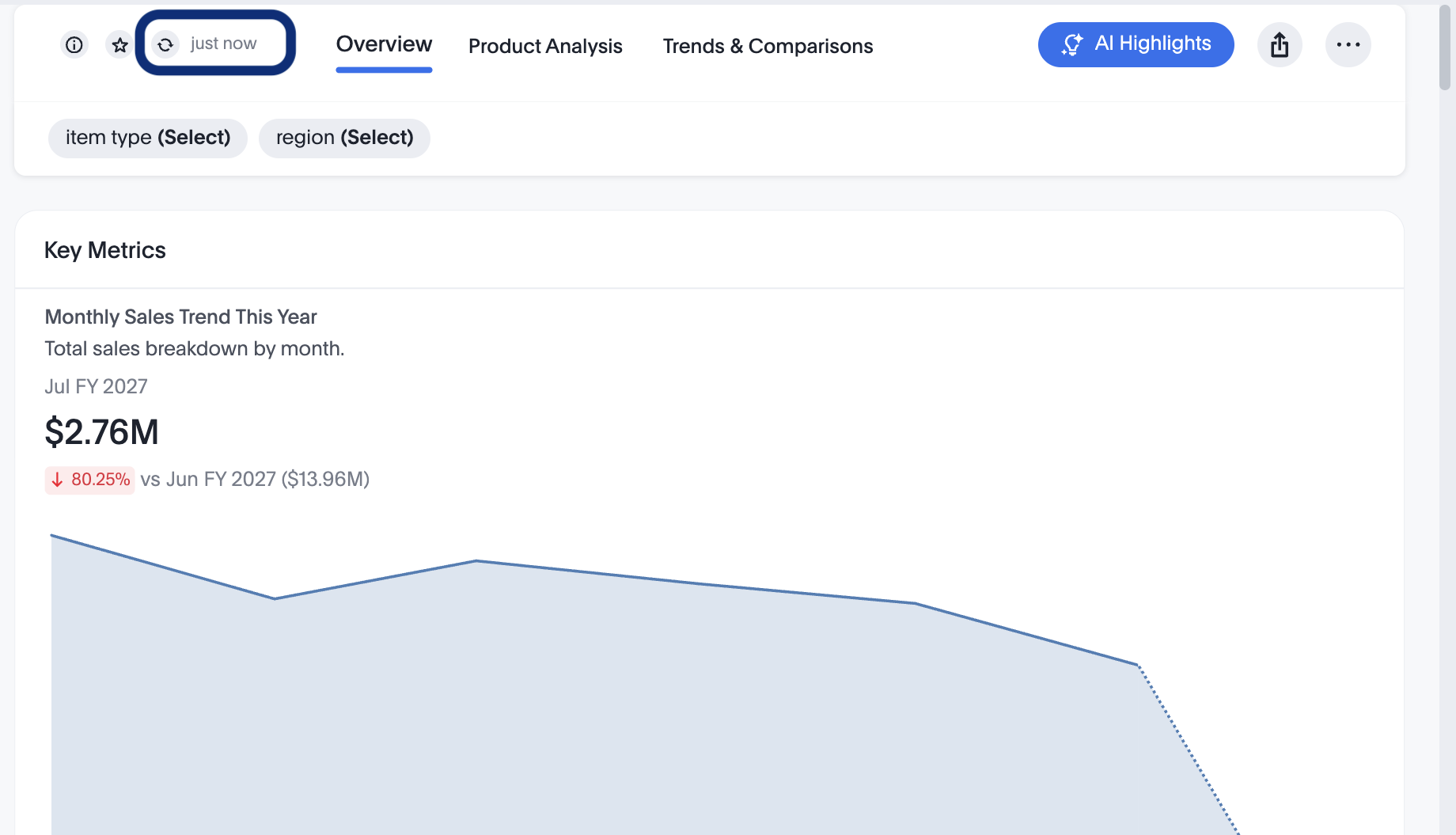
The Visual Embed SDK also provides the following action IDs and events to customize the cache refresh visibility and workflow.
| ID | Description |
|---|---|
Action ID to show, hide, or disable the Refresh button in the Liveboard header. | |
Emitted when a user clicks the Refresh button in the Liveboard header. | |
Triggers a browser cache refresh programmatically for all visualization containers on the embedded Liveboard. |
Liveboard download options🔗
Embedding application users can download Liveboards in the PDF, XLSX, and CSV formats. If the isContinuousLiveboardPDFEnabled is set to true, users can download the PDF with a continuous layout as seen in the UI, with each tab on a single page. When this parameter is set to false, users can download the Liveboard PDF in the A4 format with a paginated view.
|
Note
|
Starting with ThoughtSpot Cloud version 26.5.0.cl and Visual Embed SDK version 1.48.x, the new multi-format download experience is available on embedded Liveboards and can be enabled using the |
Download actions and behavior🔗
| Download actions | SDK parameter | Action ID for show/hide control |
|---|---|---|
Download menu action | Enabled by default. | Use the |
Continuous PDF |
| Use the |
XLSX download |
|
|
CSV download |
|
|
PDF cover and filter pages | None. UI options in PDF modal only. | Use |
Example🔗
The following example enables the PDF (Continuous), XLSX, and CSV options in the Liveboard Download modal.
const embed = new LiveboardEmbed('#tsEmbed', {
  isContinuousLiveboardPDFEnabled: true,
  isLiveboardXLSXCSVDownloadEnabled: true,
});
To hide or disable the download options, specify the following action IDs:
const embed = new LiveboardEmbed('#tsEmbed', {
  //...
  hiddenActions: [
    Action.DownloadLiveboard, // Hides the Download parent action from the more options menu
    Action.DownloadLiveboardAsContinuousPDF, // Hides the Continuous PDF download option from the Download modal
    Action.DownloadLiveboardAsCsv, // Hides the CSV download option from the Download modal
    Action.DownloadLiveboardAsXlsx // Hides the XLSX download option from the Download modal
  ],
  // Use either `hiddenActions` or visibleActions, not both, to avoid errors
  //visibleActions: [
    //Action.DownloadLiveboard, // Shows the Download parent action in the more options menu
    //Action.DownloadLiveboardAsContinuousPDF, // Shows the Continuous PDF download option
    //Action.DownloadLiveboardAsCsv, // Shows the CSV download option
    //Action.DownloadLiveboardAsXlsx // Shows the XLSX download option
  //]
});
const embed = new LiveboardEmbed('#tsEmbed', {
//...
disabledActions: [
Action.DownloadLiveboard,// Disables the Download parent action in the more options menu
Action.DownloadLiveboardAsContinuousPDF, // Disables the Continuous PDF download option in the Download modal
Action.DownloadLiveboardAsCsv, // Disables the CSV download option in the Download modal
Action.DownloadLiveboardAsXlsx, // Disables the XLSX download option in the Download modal
],
});HostEvent workflow for the download actions🔗
Use the HostEvent IDs to trigger download actions on an embedded Liveboard.
-
HostEvent.DownloadLiveboardAsContinuousPDF
To open the Download modal with the continuous PDF download option selected. -
HostEvent.DownloadAsPdf
To trigger the standard PDF (A4) download action. To download a specific Liveboard visualization, specify the GUID of the visualization in thevizIdkey. -
HostEvent.DownloadAsXlsx
To open the Download modal with the XLSX option selected when theisLiveboardXLSXCSVDownloadEnabledis enabled in the embed view. -
HostEvent.DownloadAsCsv
To open the Download modal with the CSV option selected whenisLiveboardXLSXCSVDownloadEnabledparameter is enabled in the embed view.
XLSX and CSV in Liveboard scheduled exports🔗
To enable Liveboard scheduled exports in XLSX and CSV format from the embed view, ensure that isGranularXLSXCSVSchedulesEnabled is set to true.
const embed = new LiveboardEmbed('#tsEmbed', {
    //...
    isGranularXLSXCSVSchedulesEnabled: true, // enable scope selection for XLSX and CSV Liveboard scheduled jobs.
});