
import {
  //...
  EmbedEvent
} from "@thoughtspot/visual-embed-sdk";Using embed events
Table of Contents
Embed events in the ThoughtSpot Visual Embed SDK are the events that the embedded component emits to the host application when application events such as loading, rendering, user interactions, or errors occur inside the embed. Developers can register listeners for these events and emit these events to the host application.
Embed events are part of the EmbedEvent object and are identified as the members of the EmbedEvent enumeration.
Registering event listeners🔗
To register event listeners, import the EmbedEvent library into your application setup.
When you register an event listener, you can choose to log it in the console output or add a callback function to handle the event response in the .on(embedEvent, eventHandlerCallbackFunction) format.
In the following example, the EmbedEvent.Edit is emitted and logged in the console output when a user clicks the Edit button on the embedded Liveboard.
liveboardEmbed.on(EmbedEvent.Edit, payload => {
   console.log('Liveboard edit', payload);
})
Specifying start and end🔗
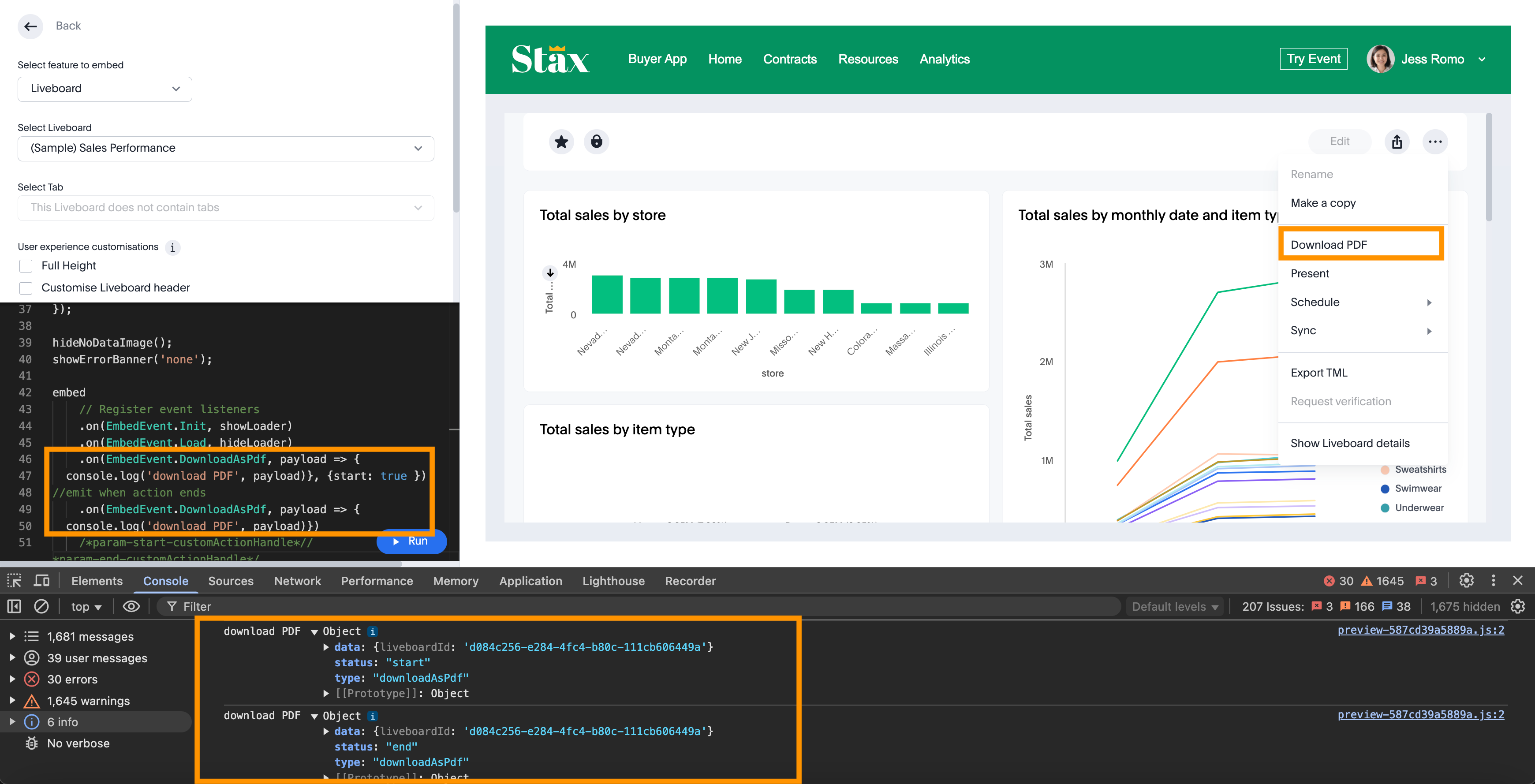
For some actions and events, you can register listeners to emit events when an action starts and ends. In this example, the EmbedEvent.DownloadAsPdf is emitted when DownloadAsPdf starts and after the download is completed:
 //emit when the download workflow starts
 liveboardEmbed.on(EmbedEvent.DownloadAsPdf, payload => {
     console.log('download PDF', payload)
 }, {
     start: true
 })
 //emit when the download workflow ends
 liveboardEmbed.on(EmbedEvent.DownloadAsPdf, payload => {
     console.log('download PDF', payload)
 })
Common use cases🔗
Embed events can be used to trigger a specific response when the event is emitted, handle load and errors for embedded components, or modify a behavior in the embedded view.
Handling event response for embedded components🔗
To handle event response, you can add a callback function.
In this example, a callback function is added to show the loader when the embedded Liveboard initializes:
liveboardEmbed.on(EmbedEvent.Init, showLoader)
//show a loader
function showLoader() {
    document.getElementById("loader");
}
You can also trigger a host event when an embed event is fired.
In this example, the HostEvent.SetVisibleVizs is triggered to set the visualizations on a Liveboard when EmbedEvent.LiveboardRendered fires.
 // Emit when the Liveboard is rendered
 liveboardEmbed.on(EmbedEvent.LiveboardRendered, () => {
     // Trigger the SetVisibleVizs host event
     liveboardEmbed.trigger(HostEvent.SetVisibleVizs, ['viz1', 'viz2']);
 });
Handling load and errors for embedded components🔗
A common workflow is to use an overlay div element to hide the embed content until you know that SSO is completed, and the content is fully loaded. If an error occurs in the process, you may prefer to display your own custom message to the end user rather than showing embedded ThoughtSpot content in an error state.
Embed events fire at different points within the loading process. The following events are related to the load, initialization, and authentication process:
-
Init
Fires at the beginning of the loading process. -
NoCookieAccess
Some browsers (Safari in particular) default to strict settings on cookie origins that prohibit the standard SSO process. This event fires if cookies are restricted by a user’s browser. -
AuthExpire
Fires if SSO does not complete and if the ThoughtSpot session times out at some point. Listen to theAuthExpireevent in the load process to determine when it is safe to show the ThoughtSpot content and listen to it after loading to hide the ThoughtSpot login screen if the session expires for some reason. -
AuthInit
Fires when the SSO process is completed correctly. The event does not fire when an SSO process fails. The logged-in user GUID is available in theAuthInitevent response. -
Error
Fires when an error occurs in the embedded app. -
Load
Fires when the area for embedding is created, not when the content has begun or finished loading. -
LiveboardRendered
Fires only onLiveboardEmbedcomponents when the Liveboard or visualization container loads.
You can use both EmbedEvent.AuthExpire and EmbedEvent.AuthInit together to determine if the SSO process is completed correctly.
To determine if AuthExpire is firing because SSO did not complete or if the ThoughtSpot session has timed out, you can set a variable to act as a flag to determine if SSO is completed.
When AuthInit fires, set the flag to true. You can also associate a callback function to AuthExpire to look up the flag to determine which state change has caused the AuthExpire event to fire.
In the following example, the tsLoggedIn flag is set to indicate the SSO login state.
// Instantiate class for embedding a Liveboard
const embed = new LiveboardEmbed("#thoughtspot-embed", {
    liveboardId: '<Liveboard-guid>',
});
let tsLoggedIn = false;
embed
    .on(EmbedEvent.Init, showLoader)
    .on(EmbedEvent.NoCookieAccess, showCookieSettingsMsg)
    .on(EmbedEvent.AuthInit, (response) => {
        // Set that AuthInit has fired
        tsLoggedIn = true;
        // authInit returns object -> {type: 'authInit', data: {userGuid: <guid>} } }
        let userGUID = response.data.userGuid;
    })
    .on(EmbedEvent.AuthExpire, (response) => {
        // Handle if session dies while content shows
        if (tsLoggedIn == true) {
            tsSessionTimeoutCleanup();
        } else {
            // Display custom message if SSO issues
            showSSOFailedMsg();
        }
    })
    .on(EmbedEvent.Error, showGenericErrorMsg)
    .on(EmbedEvent.LiveboardRendered, hideLoader)
    .render()
Identifying and logging errors🔗
The EmbedEvent.Error is fired when the following types of errors occur.
-
API
API call failure error. This error event occurs when an API request is blocked.SearchEmbed.on(EmbedEvent.Error, (error) => { console.log(error); // { type: "Error", data: { errorType: "API", error: { message: '...', error: '...' } } } }); -
FULLSCREEN
Error in presenting a Liveboard or visualization in full-screen mode.LiveboardEmbed.on(EmbedEvent.Error, (error) => { console.log(error); // { type: "Error", data: { errorType: "FULLSCREEN", error: { // message: "Fullscreen API is not enabled", // } }} }) -
SINGLE_VALUE_FILTER
Error in updating filter values. This error occurs when a single-value filter is applied on a Liveboard and the user tries to update this filter with multiple values.LiveboardEmbed.on(EmbedEvent.Error, (error) => { console.log(error); // { type: "Error", data: { errorType: "SINGLE_VALUE_FILTER", error: { // message: "Filter {filter_name}: Cannot pass multiple filtering elements to this single value filter.", // } }} }) -
NON_EXIST_FILTER
Error in applying filter due to a non-existent filter.LiveboardEmbed.on(EmbedEvent.Error, (error) => { console.log(error); // { type: "Error", data: { errorType: "NON_EXIST_FILTER", error: { // message: "UpdateFilters could not update the filter on {filter_name} as it is not an existing filter in the Liveboard. Please edit the Liveboard and add {filter_name} as a filter chip in order to update it programmatically.", // } }} }) -
INVALID_DATE_VALUE
Error due to an invalid date value in a filter. For example, if the column name isCommit Dateand a correct date value is not specified, theINVALID_DATE_VALUEerror event is fired.LiveboardEmbed.on(EmbedEvent.Error, (error) => { console.log(error); // { type: "Error", data: { errorType: "INVALID_DATE_VALUE", error: { // message: "UpdateFilters could not update the filter on {filter_name} as invalid date value provided.", // } }} }) -
INVALID_OPERATOR
Error due to an invalid operator in filter properties. For example, if you try to apply filters on theRevenuecolumn with the operator asLTand specify multiple values, it may result in an error.LiveboardEmbed.on(EmbedEvent.Error, (error) => { console.log(error); // { type: "Error", data: { errorType: "INVALID_OPERATOR", error: { // message: "UpdateFilters could not update the filter on {filter_name} as invalid operator value provided.", // } }} })
To identify and log errors, use the error types and error codes. For more information, see EmbedErrorDetailsEvent.
Modifying default behavior🔗
Embed events can also be used to modify a specific behavior in the embedded app. For example, the hideResults parameter in the SearchEmbed constructor blocks the GO button from displaying the chart or table results. When this attribute is set to true, you can listen to the QueryChanged event to perform actions based on the user’s interaction within the SearchEmbed component.
Handling custom action events🔗
If you have added a custom action set as a callback action, you must register an event handler to send data in a payload when the custom action is triggered:
searchEmbed.on(EmbedEvent.customAction, payload => {
    const data = payload.data;
    if (data.id === 'show-data') {
        console.log('Custom Action event:', data.embedAnswerData);
    }
})
liveboardEmbed.on(EmbedEvent.CustomAction, (payload) => {
if (payload.data.id === 'show-data') {
const showActionId = 'show-data';
if (payload.id === showActionId || payload.data.id === showActionId) {
showData(payload);
}
}
})Event configuration for React embed components🔗
If you are using React components to embed, you can register for any EmbedEvent by using the on<EventName> convention, for example,onAlert, onCopyToClipboard.
To trigger events on ThoughtSpot components embedded in a React app, import the useEmbedRef hook.
import { LiveboardEmbed, EmbedEvent, useEmbedRef } from '@thoughtspot/visual-embed-sdk/react';

// ...
const MyComponent = ({ dataSources }) => {
     const onLoad = () => {
     console.log(EmbedEvent.Load, {});
     };

     return (
         <SearchEmbed
             dataSources={dataSources}
             onLoad = {logEvent("Load")}
         />
    );
};
Try it out in the Visual Embed Playground🔗
Try out the embed events in the < a href="https://try-everywhere.thoughtspot.cloud/v2/#/everywhere/playground/liveboard"> Visual Embed Playground and preview changes.
Event enumerations and examples🔗
For information about the supported event objects and examples, see EmbedEvent.
Spotter conversation pin events🔗
The following EmbedEvent members are available from ThoughtSpot Cloud 26.10.0.cl and Visual Embed SDK 1.53.0. Both events require spotterChatPinConfig.enabled: true and enablePastConversationsSidebar: true in the embed configuration.
| Event | Cluster version | Description |
|---|---|---|
| 26.10.0.cl | Emitted when a user pins a Spotter conversation. Payload: |
| 26.10.0.cl | Emitted when a user unpins a Spotter conversation. Payload: |
Listen for pin and unpin events
const embed = new SpotterEmbed(container, {
  spotterSidebarConfig: {
    enablePastConversationsSidebar: true,
    spotterChatPinConfig: { enabled: true },
  },
  // ...
});

embed.on(EmbedEvent.SpotterConversationPinned, (event) => {
  const { conversationId, pinnedAt } = event.data;
  console.log(`Conversation ${conversationId} pinned at ${pinnedAt}`);
});

embed.on(EmbedEvent.SpotterConversationUnpinned, (event) => {
  const { conversationId, unpinnedAt } = event.data;
  console.log(`Conversation ${conversationId} unpinned at ${unpinnedAt}`);
});

embed.render();
Scoped filter and parameter events🔗
The following EmbedEvent members gained an optional applicability attribute in SDK 1.53.0. This attribute scopes a filter or parameter change notification to a specific Liveboard tab or group.
| Event | Change in SDK 1.53.0 |
|---|---|
| Payload gains an optional |
| Payload gains an optional |
The applicability object has the following shape:
{
  "level": "LIVEBOARD" | "TAB" | "GROUP",
  "targetId": "{tab-or-group-id}"
}
targetId is optional. Omit it when level is LIVEBOARD.
Additional resources🔗
-
See the EmbedEvent and HostEvent SDK documentation.
-
For information about triggering events on React components, see Event listeners for React components.